Introduction
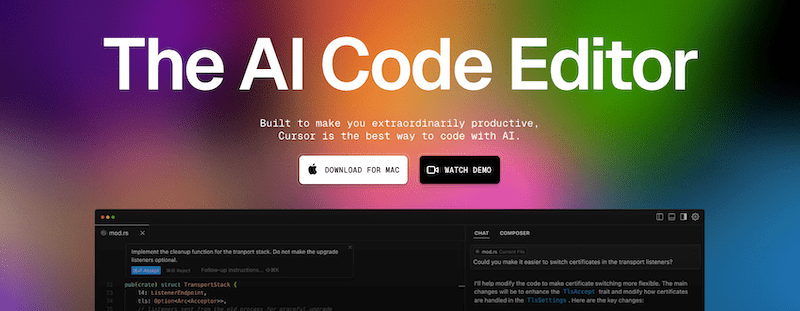
In the world of software development, having efficient tools is crucial to optimizing workflow. Cursor AI IDE has become a popular AI-powered code editor designed to enhance developer productivity. This tutorial will guide you step by step on how to install Cursor AI IDE on Ubuntu 24.04, ensuring proper integration into your development environment.
Method 1: Manuel Installation
1. Download the Cursor AppImage File
Visit the official Cursor website at www.cursor.com and download the latest version of the AppImage file. This file allows you to run the software without a traditional installation.
2. Move the AppImage File to a Designated Folder
To keep things organized, move the downloaded file to a dedicated applications folder:
cd ~/Downloads
mkdir -p ~/Applications
mv cursor-*.AppImage ~/Applications/cursor.AppImage
3. Install Required Dependencies
Cursor requires libfuse2 to function correctly. Install it by running:
sudo apt update
sudo apt install libfuse2
4. Grant Execution Permissions to the AppImage
Ensure the AppImage has execution permissions:
chmod +x ~/Applications/cursor.AppImage5. Run Cursor with --no-sandbox Option
Due to security configurations in Ubuntu 24.04, it is recommended to run Cursor with the --no-sandbox option:
~/Applications/cursor.AppImage --no-sandbox6. Create a Desktop Entry for Menu Access
To make Cursor accessible from the application menu, create a .desktop file:
-
Open a text editor with superuser privileges:
sudo nano /usr/share/applications/cursor.desktop -
Add the following content:
[Desktop Entry]
Name=Cursor AI IDE
Exec=/home/your_user/Applications/cursor.AppImage --no-sandbox
Icon=/home/your_user/Applications/cursor.png
Type=Application
Categories=Development;
Replace
your_userwith your actual username and ensure the icon path is correct. -
Save and close the file.
7. Add an Alias to Run Cursor from Terminal
To simplify launching Cursor from the terminal, add an alias to your shell configuration file:
-
Open
.bashrcfile:nano ~/.bashrc -
Append the following line:
# Alias for Cursor AI IDE alias cursor='~/Applications/cursor.AppImage --no-sandbox' -
Save the file and reload the configuration:
source ~/.bashrc
Method 2: Automated Installation with Script
You can automate all the previous steps using a script. Below is an example of a script based on the content of the gist (with incorporated corrections and comments from various users):
1. Create the script:
Open a text editor and save the following content in a file named, for example, install_cursor.sh:
#!/usr/bin/env bash
set -euo pipefail

# ==============================
# Configuración de rutas y URLs
# ==============================
APPIMAGE_PATH="/opt/cursor.appimage"
ICON_PATH="/opt/cursor.png"
DESKTOP_ENTRY_PATH="/usr/share/applications/cursor.desktop"
ICON_URL="https://assets.francgs.dev/cursor.png"
API_URL="https://www.cursor.com/api/download?platform=linux-x64&releaseTrack=stable"

# =======================================
# Función: Comprueba e instala dependencia
# =======================================
ensure_dependency() {
  local cmd="$1" pkg="$2"
  if ! command -v "$cmd" &> /dev/null; then
    echo "Instalando dependencia: $pkg..."
    sudo apt-get update
    sudo apt-get install -y "$pkg"
  fi
}

# ===================================
# Función: Obtiene URL del AppImage
# ===================================
get_cursor_url() {
  # Seguimos redirecciones para obtener el JSON final
  local raw
  if ! raw=$(curl -sSL "$API_URL"); then
    echo "Error: no se pudo contactar la API ($API_URL)" >&2
    return 1
  fi

  # Muestra JSON completo en stderr para debug
  echo "DEBUG: respuesta API -> $raw" >&2

  # Extrae downloadUrl o url con jq
  local url
  url=$(printf '%s' "$raw" | jq -r '.downloadUrl // .url // empty')
  printf '%s' "$url"
}

# ==================================================
# Función: Descarga e instala AppImage, ícono y .desktop
# ==================================================
fetch_and_install() {
  echo "Obteniendo URL de descarga de Cursor..."
  local CURSOR_URL
  if ! CURSOR_URL=$(get_cursor_url); then
    echo "Error: no se pudo obtener la URL de descarga." >&2
    exit 1
  fi

  if [[ -z "$CURSOR_URL" ]]; then
    echo "Error: campo downloadUrl/url vacío en la respuesta." >&2
    exit 1
  fi

  echo "Descargando AppImage desde:"
  echo "  $CURSOR_URL"
  sudo curl -L --fail "$CURSOR_URL" -o "$APPIMAGE_PATH"
  sudo chmod +x "$APPIMAGE_PATH"

  echo "Descargando ícono..."
  sudo curl -L --fail "$ICON_URL" -o "$ICON_PATH"

  echo "Creando/actualizando entrada de escritorio..."
  sudo tee "$DESKTOP_ENTRY_PATH" > /dev/null <<EOF
[Desktop Entry]
Name=Cursor AI IDE
Exec=$APPIMAGE_PATH --no-sandbox
Icon=$ICON_PATH
Type=Application
Categories=Development;
EOF
}

# ============================
# Lógica principal del script
# ============================
case "${1:-install}" in
  install)
    if [[ -f "$APPIMAGE_PATH" ]]; then
      echo "Cursor ya está instalado. Usa '$0 update' para actualizar."
      exit 0
    fi
    echo "=== Instalando Cursor AI IDE ==="
    ensure_dependency curl curl
    ensure_dependency jq jq
    fetch_and_install
    echo "¡Instalación completada!"
    ;;
  update)
    if [[ ! -f "$APPIMAGE_PATH" ]]; then
      echo "Cursor no está instalado. Usa '$0 install' primero."
      exit 1
    fi
    echo "=== Actualizando Cursor AI IDE ==="
    ensure_dependency curl curl
    ensure_dependency jq jq
    fetch_and_install
    echo "¡Actualización completada!"
    ;;
  *)
    echo "Uso: $0 [install|update]"
    exit 1
    ;;
esac
2. Make the script executable and run it:
chmod +x install_cursor.sh
sudo ./install_cursor.sh
Important: Since the script installs files in system directories (such as
/optand/usr/share/applications), it must be executed with administrator privileges (usingsudo).
Summary of Steps
- Download the
AppImagefrom www.cursor.com. - Move the file to an appropriate location (e.g.,
~/Applicationsor/opt). - Install the required dependencies:
libfuse2(andcurlif needed). - Grant execution permissions to the
AppImagefile. - Run the
AppImageusing--no-sandbox. - Create a desktop entry (.desktop) to integrate Cursor into the application menu.
- Add an alias in your shell configuration file to simplify launching from the terminal.
- (Optional) Use a script to automate all steps.
Conclusion
By following these steps, you will successfully install and configure Cursor AI IDE on your Ubuntu 24.04 system. This AI-powered tool will help improve your workflow and productivity in software development. Ensure you keep the software updated and explore its full capabilities to maximize its benefits.
Happy reading! ☕
Comments